Working with Arrays
Most business screens show lists: a table of orders, a grid of line items, a list of customers. In 4GL you do this with two statements:
DISPLAY ARRAY— show a scrollable, read-only (or selectable) list.INPUT ARRAY— let the user add, edit and delete rows in a grid.
Both connect a program array (a DYNAMIC ARRAY OF RECORD) to a screen array
defined in the form.
The list form
A list form uses a TABLE container in the LAYOUT. You write the column header
once (in a GRID) and one representative data row (in the TABLE); the client
repeats the row as needed and makes it scrollable.
Create people.per:
DATABASE FORMONLY

LAYOUT
 VBOX
  GRID
  {
    [c1        |c2                            |c3  ]
  }
  END
  TABLE
  {
    [id        |name                          |age ]
    [id        |name                          |age ]
    [id        |name                          |age ]
    [id        |name                          |age ]
    [id        |name                          |age ]
  }
  END
 END
END

ATTRIBUTES

Label c1 = FORMONLY.h_id;
Label c2 = FORMONLY.h_name;
Label c3 = FORMONLY.h_age;

id   = FORMONLY.id   TYPE INTEGER;
name = FORMONLY.name TYPE CHAR(30);
age  = FORMONLY.age  TYPE INTEGER;

INSTRUCTIONS
SCREEN RECORD s_people[5](FORMONLY.id THRU FORMONLY.age);
Two pieces matter here:
- The
TABLElists the data columns. The number of rows you draw (5 here) is the number visible at once — the list still scrolls beyond that. - The
SCREEN RECORDat the bottom names the screen array (s_people), its visible row count ([5]), and the span of fields it covers (FORMONLY.id THRU FORMONLY.age).
Compile it:
fcompile -xml people.per
Showing a list with DISPLAY ARRAY
Fill a program array, tell the runtime how many rows it holds with SET_COUNT, then
display it.
FUNCTION show_people()
    DEFINE a_people DYNAMIC ARRAY OF RECORD
        id   INTEGER,
        name CHAR(30),
        age  INTEGER
    END RECORD

    -- fill the array
    LET a_people[1].id = 1  LET a_people[1].name = "Ada"   LET a_people[1].age = 36
    LET a_people[2].id = 2  LET a_people[2].name = "Alan"  LET a_people[2].age = 41
    LET a_people[3].id = 3  LET a_people[3].name = "Grace" LET a_people[3].age = 45

    -- show the column headers (they are Label fields)
    DISPLAY "ID"   TO h_id
    DISPLAY "Name" TO h_name
    DISPLAY "Age"  TO h_age

    CALL SET_COUNT(a_people.getLength())     -- tell the list how many rows there are
    DISPLAY ARRAY a_people TO s_people.*

        BEFORE ROW
            MESSAGE "Use the arrow keys to browse"

        ON ACTION accept                     -- the user picked a row
            EXIT DISPLAY

    END DISPLAY

    -- ARR_CURR() is the row the user was on
    MESSAGE "You selected: ", a_people[ARR_CURR()].name CLIPPED
END FUNCTION
Key helpers:
| Helper | Meaning |
|---|---|
SET_COUNT(n) |
Tell DISPLAY ARRAY that n rows are filled |
ARR_CURR() |
The row number the user is currently on |
EXIT DISPLAY |
Leave the DISPLAY ARRAY loop |
Control blocks inside DISPLAY ARRAY mirror those in INPUT:
| Block | Fires when… |
|---|---|
BEFORE ROW |
The cursor moves onto a row |
AFTER ROW |
The cursor leaves a row |
ON ACTION name |
The user triggers an action |
AFTER DISPLAY |
The list is closed |
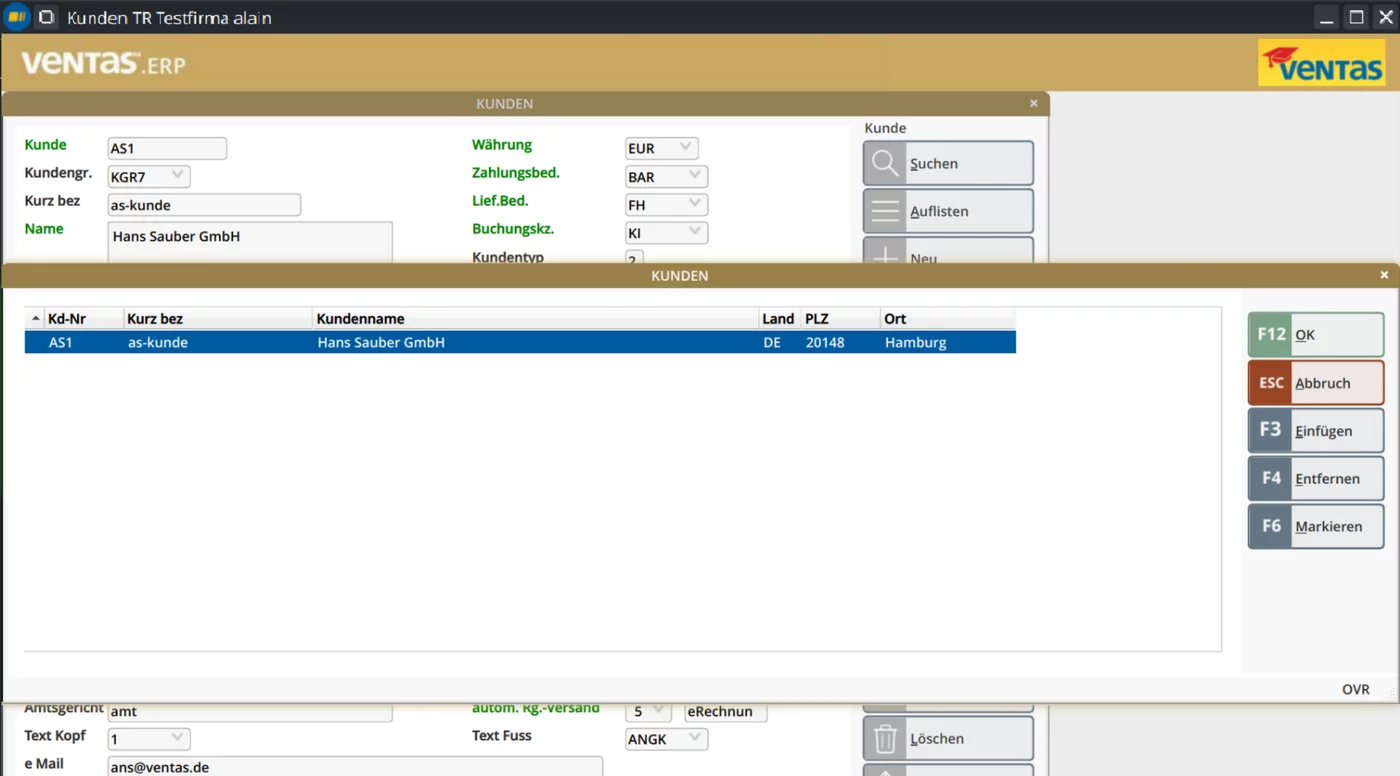
SCREEN RECORD — the selected row is highlighted and the client supplies the row actions (insert, remove, mark) and the OK/Cancel buttons.Editing a list with INPUT ARRAY
INPUT ARRAY turns the same grid into an editable one: the user can change cells,
add rows and delete rows.
FUNCTION edit_people()
    DEFINE a_people DYNAMIC ARRAY OF RECORD
        id   INTEGER,
        name CHAR(30),
        age  INTEGER
    END RECORD

    INPUT ARRAY a_people FROM s_people.*

        BEFORE INSERT
            -- a new row was added: set a default
            LET a_people[ARR_CURR()].age = 0

        AFTER FIELD name
            IF LENGTH(a_people[ARR_CURR()].name CLIPPED) = 0 THEN
                ERROR "Name is required on row ", ARR_CURR()
                NEXT FIELD name
            END IF

        AFTER FIELD age
            IF a_people[ARR_CURR()].age < 0 THEN
                ERROR "Age cannot be negative"
                NEXT FIELD age
            END IF

        AFTER INPUT
            MESSAGE "List saved (", a_people.getLength(), " rows)"

    END INPUT
END FUNCTION
Extra control blocks specific to editing:
| Block | Fires when… |
|---|---|
BEFORE INSERT |
A new row is being added |
AFTER INSERT |
A new row has been added |
BEFORE DELETE |
A row is about to be removed |
AFTER DELETE |
A row has been removed |
The program array grows and shrinks automatically as the user inserts and deletes
rows — when INPUT ARRAY returns, a_people.getLength() reflects the final number
of rows.
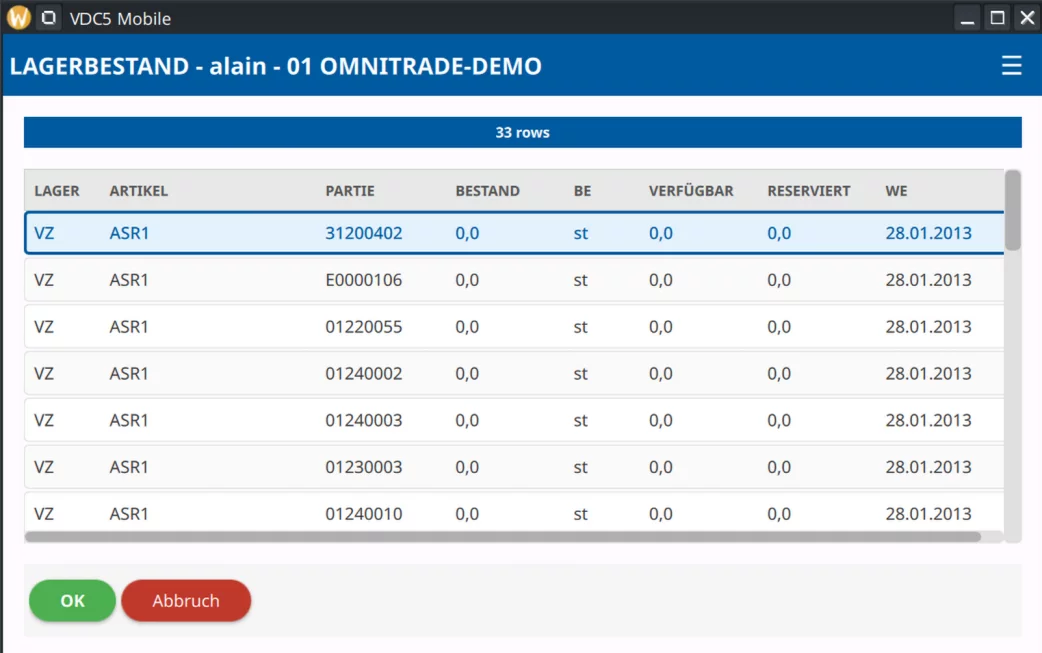
DISPLAY ARRAY list on the mobile client — same program, same columns, touch-friendly rows.A marker / status column
It is common to give each row a small marker column — a tick for "selected", a flag for "needs attention". Add a one-character field at the front of the row and set its value per row:
LET a_people[idx].marker = "x"      -- show a mark
LET a_people[idx].marker = ""       -- clear it
The marker field can also hold an image file name (with an extension, e.g.
"flag.png"), in which case the client shows that image in the cell instead of
text. This is handy for status icons.
Layout note for marker columns. In the form, the header row (
GRID) has no placeholder for the marker column — the headers start at the first data column. Only the data rows (TABLE) include the marker field. Aligning the headers to the data (not to the marker) is the most common beginner mistake.
Two rules worth repeating
- Always call
SET_COUNT()beforeDISPLAY ARRAY. Without it the list does not know how many rows you filled and may show nothing. - Use a
DYNAMIC ARRAYfor the program array. It resizes itself; a fixed array forces you to guess the maximum up front.
Your lists are still hand-filled. Time to get real data: connect to a database in Talking to the Database.